
Must see tech does not have to be new, flashy, or futuristic. Often, the most useful innovations help with familiar tasks: finding a route, managing a health need, or making a home safer.
This guide explores 25 practical technologies, from familiar AI tools and connected devices to password managers, translation apps, backup services, and everyday work accessories. Some are newer developments; others are established tools worth a closer look. Their value depends on more than what they can do: cost, privacy, reliability, and ease of adoption matter, too. Each example offers a practical benefit—and a reason to consider who it helps and where it falls short.
Compare Must See Tech Before You Commit
These 25 categories are a starting point for solving different everyday problems. Their order is not a ranking, and features vary between products. Use the table to identify the first question worth answering for your situation, then check the exact model, service plan, region, and current terms.
| Technology | Practical starting use | Check before committing |
|---|---|---|
| AI assistants | Draft a summary from non-sensitive notes | Correction time, data controls, and plan limits |
| AI agents | Sort copies of routine requests | Permissions, approval points, and activity records |
| Smart-home devices | Automate one light or monitor a leak-prone area | Compatibility, local controls, and update support |
| Wearables | Notice activity and routine patterns | Measurement purpose, comfort, and data sharing |
| Electric vehicles | Plan a regular commute and charging routine | Charging access, real conditions, and ownership costs |
| Telehealth | Ask a provider about a suitable follow-up | Visit suitability, cost, accessibility, and connection |
| AI music tools | Develop and revise a musical sketch | Usage permissions, export options, and editing needs |
| Digital learning | Run a short classroom check-in | Student access, privacy, and a participation fallback |
| Shopping tools | Compare an actual purchase or membership | Seller identity, total charges, and renewal terms |
| Password managers and passkeys | Simplify sign-ins across your accounts | Recovery arrangements and device support |
| Translation apps | Read a sign or handle a short conversation | Language coverage, offline modes, and accuracy |
| Robot vacuums and mops | Maintain floors between deeper cleans | Floor suitability, obstacles, and maintenance |
| Item trackers | Locate misplaced keys or a bag | Phone ecosystem, location timestamps, and batteries |
| E-readers | Carry books and adjust reading settings | File formats, library access, and screen size |
| Digital notebooks | Organize handwriting and annotate documents | Pen support, exports, and subscription limits |
| Accessibility tools | Make reading, listening, or device control easier | Actual task fit, language, and app support |
| Mesh Wi-Fi | Improve coverage in difficult rooms | Router placement, connection bottlenecks, and ports |
| Backup services and drives | Keep recoverable copies of important files | Included data, retention, and restore testing |
| Chargers and power banks | Recharge devices away from an outlet | Charging compatibility, weight, and port sharing |
| Portable power stations | Power selected devices away from mains power | Output, stored energy, and realistic runtime |
| Scanning and OCR | Turn paperwork into searchable files | Image quality, text errors, and storage privacy |
| Noise-canceling headphones | Make listening and remote calls more comfortable | Fit, microphone quality, and device switching |
| Offline maps | Prepare navigation before losing a connection | Downloaded area, travel modes, and update limits |
| Video-calling tools | Meet or catch up without traveling | Guest access, audio quality, and privacy |
| USB-C hubs and docks | Reconnect a laptop to a desk more easily | Display support, charging, and port capabilities |
Before investing in must see tech, check availability for your exact location, language, and account. A feature shown in a demonstration may depend on a particular model, operating system, partner service, or subscription. Separate functions you can use today from announced upgrades, and do not base an essential purchase on a promised future release.
When comparing must see tech reviews, distinguish a demonstration from a test of everyday use. Look for the exact model or software version, the tasks tested, the conditions, and any sponsorship or supplied review unit. A single polished result does not establish consistent performance. Give more weight to clearly explained methods and repeatable results than to an unexplained score, and verify purchase-critical details in current manufacturer documentation.
1. AI Assistants That Help With Everyday Work
Conversational AI can make routine tasks easier for students, professionals, and consumers. Give it rough meeting notes, for example, and it can shape them into a draft email or summary. It can also compare product options, brainstorm ideas, or turn a course syllabus into a study plan.

A useful assistant saves time without taking over your judgment. Clear instructions and relevant context often improve its responses, but answers may still be incomplete, outdated, or confidently wrong. Treat AI as a starting point, not an authority: check important facts, especially before acting on health, financial, or legal advice.
Consider privacy, too. Avoid entering personal or confidential information until you understand how the service stores and uses data. For a practical look at capabilities, trade-offs, and common limitations, see a guide to advanced AI assistants. Like other must see tech, these tools are most useful when they fit a real need and have sensible safeguards.
Try the same small task several times before deciding an assistant is dependable. Compare the output with doing the work yourself, including the time spent checking and correcting it. Confirm which features require a paid plan, whether uploads are retained, and whether you can delete conversations or export useful work before changing services.
2. AI Agents That Automate Repetitive Tasks
AI agents can take on recurring steps, such as sorting incoming support requests by topic or drafting replies to common questions. Unlike a chatbot, which mainly responds to prompts, an agent can follow a defined workflow and take actions, such as labeling a message or updating a record.
That ability can save time, but it also raises the stakes. Useful agents work within clear boundaries, and people should monitor them—especially when they can act on their own or access business data. An agent might misread a request, expose sensitive information, or send a reply that needs a human touch.
Start with a low-risk, reversible task, such as sorting a copy of incoming requests. Review the results before letting the agent make changes or handle more work. If you want a practical example, see a guide to building a useful AI agent without coding. This kind of measured trial can show whether the tool earns a place in your everyday must see tech.
Before connecting an agent to accounts, identify exactly what it can read, change, or send. Give it only the access its task requires, keep a record of its actions, and require approval before purchases, outgoing messages, or irreversible changes. Know how to pause the workflow and revoke access if a trial produces unexpected results.
3. Smart-Home Devices That Coordinate Daily Routines
Connected lights, thermostats, locks, speakers, and sensors can make everyday routines easier to manage. Lights can turn on at a set time, a thermostat can adjust temperatures when people are home, and door or leak sensors can send alerts when something needs attention. These tools can support comfort, accessibility, and energy management, though savings depend on the home and how devices are used.
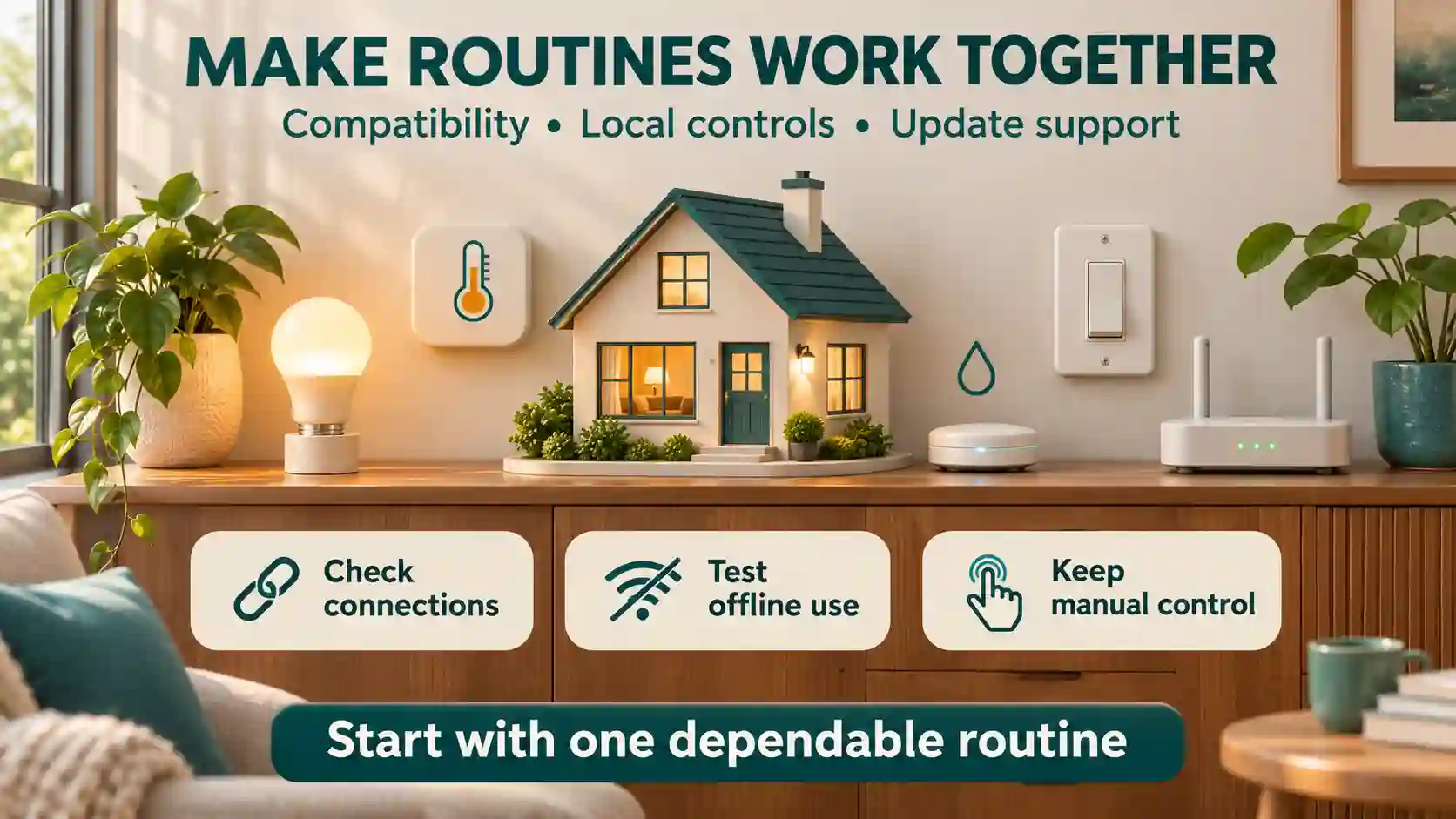
For smart-home must see tech, the experience depends on devices working well together. Before buying, check compatibility with your existing equipment and preferred smart-home platform. Secure accounts with unique passwords and multi-factor authentication, and confirm that manufacturers provide software updates.
Consider what happens during an internet outage, too. Some devices may still work through local controls or schedules; others may lose key features. A connected home can be useful must see tech, but only when its core functions remain reliable and manageable.
Check compatibility at the feature level: a device working with your platform does not mean every automation or setting will be available. Confirm whether you need a separate hub, bridge, or subscription. Test physical controls, shared household access, and account recovery, and ask how long security updates will be provided before relying on a device for a daily routine.
For cameras, microphones, and shared smart-home accounts, decide who can view recordings, receive alerts, or change settings before installation. Consider visitors and other household members, not only the account owner. Review recording and retention options, explain where monitoring is active, and remove temporary access when it is no longer needed. Convenience for one person should not make other people’s privacy an afterthought.
4. Wearables That Turn Health Data Into Useful Signals
Watches and fitness trackers can turn everyday activity, sleep, and heart-rate readings into patterns worth noticing. For example, a weekly view may show that regular walks coincide with better sleep, or that late nights leave you feeling tired. The value is in building self-awareness and routines—not treating a consumer device as a medical test.
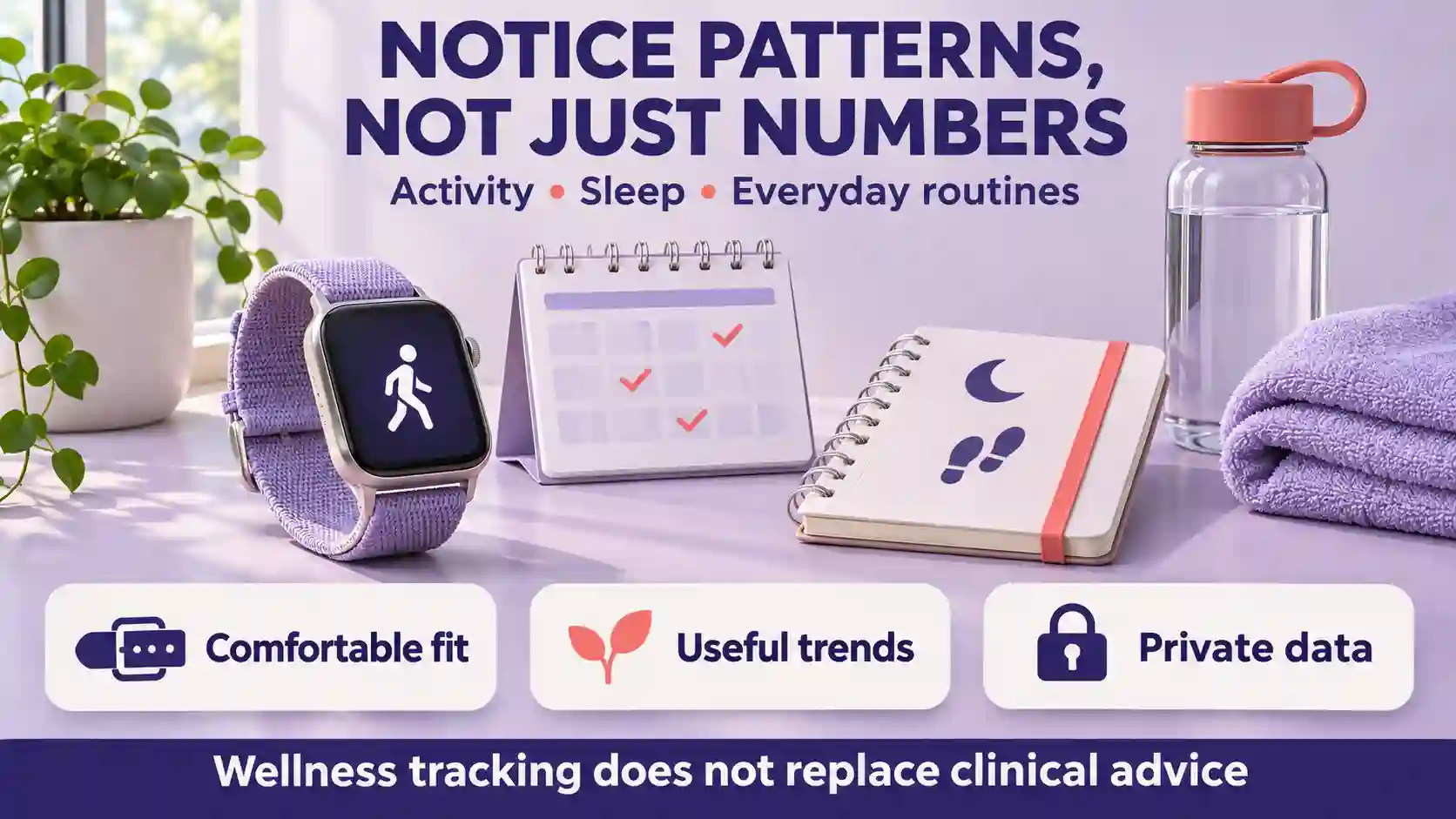
Consistency and context matter more than reacting to one reading. A device worn loosely, a restless night, or a change in routine can affect the numbers. Look for patterns over time, and consider whether tracking helps you make choices that feel manageable.
When choosing a wearable, check its fit, battery life, accessibility features, subscription costs, and privacy settings. Some useful features require a paid plan, and not everyone wants sensitive health data stored in an app. Wearables can be practical must see tech, but they have limits: concerning symptoms or medical decisions call for qualified clinical advice, not a reading alone.
Check the purpose of each advertised measurement rather than assuming every feature on a watch has the same medical status. Read the manufacturer’s instructions and limitations for your exact model. If you intend to share readings with a care team, ask which information is useful and whether it can be exported in a format they accept.
5. Electric Vehicles With Smarter Range and Energy Controls
Electric vehicles use battery-management systems, navigation, regenerative braking, and driving modes to make energy use easier to manage. Navigation can account for elevation and charging stops, while regenerative braking recovers some energy as the vehicle slows. These tools can help drivers plan trips and use power more thoughtfully, but they cannot guarantee a particular range.

Actual range varies with weather, speed, terrain, cabin heating or cooling, and driving habits. For example, a Cadillac Lyriq’s selectable modes can change how the vehicle responds and uses energy; learn more about how Cadillac Lyriq driving modes affect range and battery use. A mode may suit a certain trip or driving style, but results depend on conditions.
Before buying, compare charging access, commute needs, and total ownership costs, including electricity and maintenance. Check the vehicle-specific guidance, too: features and recommendations differ by model. Smarter controls make EVs practical must see tech for many drivers, but the right fit depends on everyday needs.
Plan charging around where the car will actually park. Check connector compatibility, available charging power, payment requirements, and backup stops on regular routes. If home charging is part of the plan, obtain an installation estimate and any required permissions before counting on it. Compare a realistic charging routine with your schedule, rather than judging convenience by a peak charging claim alone.
6. Telehealth Tools That Make Care More Accessible
Video visits can make routine follow-ups easier, especially when travel is difficult or the appointment involves discussing results or adjusting a treatment plan. Patient portals also let people review records, request prescription renewals, and message care teams without waiting on a phone line.
Remote monitoring devices can share readings such as blood pressure or blood sugar with a clinician. Digital appointment tools may help patients find open times, complete forms, and receive reminders. These options can reduce friction, but they depend on a reliable internet connection, accessible design, and insurance coverage that fits the visit.
Telehealth is not right for every concern. A clinician may need an in-person exam, tests, or imaging to assess symptoms. Protect health information by checking how a service handles privacy, and remember that consumer apps or AI tools do not replace licensed medical professionals. For emergencies, seek urgent or emergency care rather than waiting for a virtual appointment. As must see tech goes, telehealth is most useful when it expands access without obscuring its limits.
Before a virtual visit, confirm the charge, joining instructions, and any accessibility support you need. Test your camera and microphone, find a private place, and prepare questions and medication information. Ask the provider how to reconnect if the call drops. The HHS telehealth preparation guide explains these practical steps.
7. AI Music Tools That Expand Creative Possibilities
AI music tools can help creators get past a blank page or move through routine production tasks faster. A songwriter might sketch a melody from a prompt, compare different sounds for a chorus, or ask a tool to suggest chord variations. Producers can also use AI features to sort recordings, label tracks, or organize parts of a workflow.
AI music tools belong on a must see tech shortlist when they support creative work rather than promise automatic hits. Generated material may sound generic, miss the intended mood, or need substantial editing. Human direction—choosing what fits, reshaping arrangements, and checking the final mix—remains central.
Before using a result, check the tool’s terms. Rights, attribution requirements, and permission for commercial use vary, and terms may change. Don’t assume that a paid plan automatically grants every right you need. For an overview of options and their trade-offs, see a guide to AI music production tools. For musicians and curious beginners alike, this can be useful must see tech when it supports their own ideas without obscuring the rules.
For a production workflow, test whether you can export usable audio files or separate tracks and continue editing them in your existing software. Keep a record of the service terms and plan used when creating material. Get permission before uploading another person’s recordings or imitating an identifiable performer; access to a tool does not establish permission to use someone else’s work or identity.
8. Digital Learning Tools That Make Lessons More Interactive
Classroom response systems let students answer quick polls and quizzes from a phone, tablet, or computer. Teachers can see which ideas are clear and where students may need another explanation. A short poll, for example, can reveal different views before a class discussion.
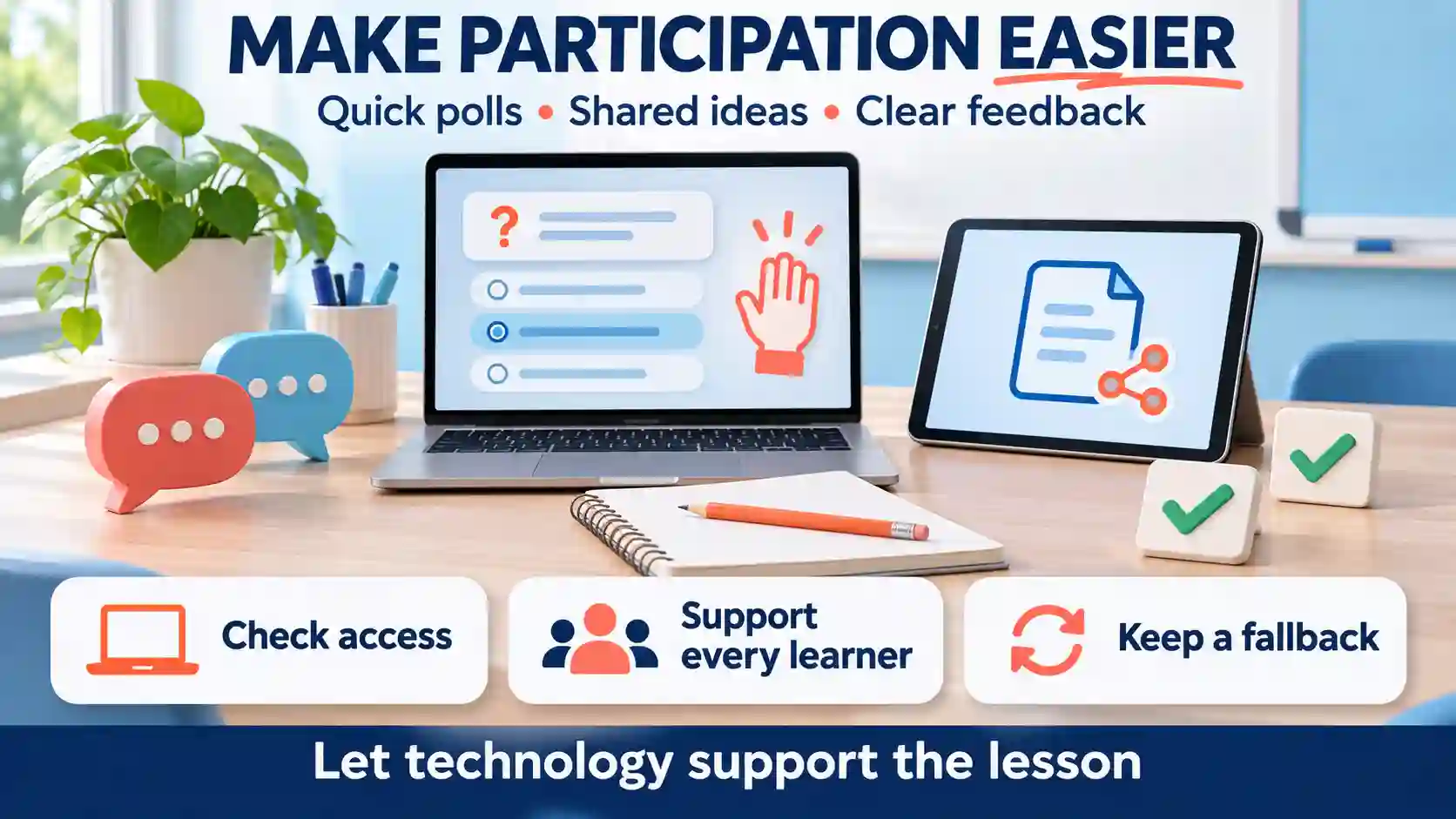
Shared digital materials and interactive learning platforms can also support group work. Students might add ideas to a shared document or solve a problem together, while teachers check progress and offer guidance. To join an activity, a student may enter a class code on the platform and respond to a quiz or prompt.
These tools work best when they support teaching, not replace educator judgment or face-to-face discussion. Reliable device and internet access, clear instructions, and accessible design matter. Teachers also need a fallback, such as paper questions, if a device or connection fails. As a category of must see tech, digital learning can make participation more immediate without making technology the lesson itself.
Before adopting a classroom platform, test keyboard navigation, captions where relevant, and use on the devices students actually have. Explain who can see responses and whether names are needed. Check the school’s approved tools and data policies before creating student accounts, and keep an equivalent way to participate for learners who cannot use the platform.
9. Smarter Online Shopping and Subscription Decisions
Recommendation systems can surface products that match a shopper’s interests, while delivery tracking shows when an order is likely to arrive. Digital receipts also make it easier to find purchase details and manage returns. These examples of must see tech can save time, but convenience does not always mean a better deal.
Personalization may narrow the choices you see and can rely on extensive consumer data. Compare prices across sellers, and check delivery fees and return policies before buying. A subscription can help if you use its benefits often, but weigh the cost against your actual habits.
Before paying for a membership, review renewal terms, delivery charges, and how often you would use its perks. If you’re weighing the benefits, a guide to deciding whether Amazon Prime is worth it can help you compare them with your shopping habits. Memberships are useful when the numbers work for you—not simply because a service makes signing up easy.
Check the seller as well as the product, and distinguish a sponsored placement from an independent comparison. Record the full checkout total and the date a trial becomes a paid subscription. Check how cancellation works before enrolling, and keep the confirmation. Treat links in unexpected delivery or renewal messages cautiously; check the order through the retailer’s own app or website.
10. Password Managers and Passkeys for Easier Sign-Ins
Remembering a different password for every account is a chore most people would rather avoid. A password manager can generate and store unique passwords, then fill them on supported sites. Passkeys offer another sign-in option where available, using a supported device or credential manager instead of asking you to type a password.
Start with an account you can recover easily and learn how the system works across your phone and computer. Check recovery options, device compatibility, sharing features, and export support before moving everything. Keep your recovery information somewhere dependable; easier sign-in is only useful if you can still regain access when a device is lost.
Password managers and passkeys are related but not interchangeable. A service may support one without the other, and recovery arrangements differ. Microsoft’s explanation of passkeys is a useful starting point for understanding device and credential-manager options.
11. Translation Apps for Travel and Everyday Conversations
A translation app can help you read a train-station sign, understand a short message, or get a simple question across while traveling. Depending on the app and language, you may be able to translate typed text, camera images, or speech. Try the feature you actually need rather than assuming every mode works equally well.
Download supported language packs before leaving reliable Wi-Fi, then test them without a connection. Names, slang, background noise, and unclear print can lead to mistakes. For an important conversation, confirm the meaning with the other person rather than relying on a fluent-looking sentence.
Google’s offline language guidance explains how to check download availability. Avoid uploading private conversations without permission, and use qualified language support when a misunderstanding could have serious consequences.
12. Robot Vacuums and Mops That Reduce Routine Cleaning
A robot vacuum can handle some of the dust and crumbs that accumulate between deeper cleans. A vacuum-and-mop model may also help maintain suitable hard floors. The everyday benefit is a cleaner starting point when you get home, rather than a promise that you can put away every other cleaning tool.

Choose around your floor surfaces, rugs, thresholds, furniture clearance, and pets. Look at how the model handles no-go areas and where its dock will fit. Obstacle detection varies, so tidy loose cords and small objects instead of assuming the robot will recognize everything.
Allow for upkeep: brushes need attention, dust containers fill, and mopping systems need cleaning and consumables. Check replacement-part prices and whether features depend on an app or online account. A simpler model that fits your rooms may be easier to live with than a more elaborate one that needs constant intervention.
13. Bluetooth Item Trackers for Keys, Bags, and Luggage
A small tracker attached to your keys can spare you a frantic search before leaving home. Depending on the tracker and phone, you may be able to play a sound, view a reported location, or use a nearby-finding feature. The best starting point is an item you regularly misplace.
Check the supported phone ecosystem, battery arrangement, sharing options, and any paid features. A location report may be old, so read its timestamp. Do not assume a Bluetooth item tag provides continuous GPS tracking or guaranteed coverage wherever a bag travels.
Use trackers for your own belongings and with appropriate consent when sharing them. They are not a substitute for supervising a child or keeping a pet safe. Apple’s guide to finding personal items illustrates why finding methods and device support matter.
14. E-Readers for Comfortable, Focused Reading
If you read books regularly, a dedicated e-reader can keep your library close without the distractions of a general-purpose tablet. Many models let you adjust text size and lighting, but the experience differs for novels, magazines, illustrated books, and large PDFs.
Try a sample of the material you read most. Check how page turns, highlighting, dictionary tools, and library borrowing work in your region. If you already own ebooks, confirm that the device accepts their formats and any associated restrictions before buying.
Compare screen size, weight, storage, repair options, and the cost of books or memberships. A larger screen can suit documents but be less convenient in a small bag. You may find that your existing phone or tablet’s reading app already meets your needs.
15. Digital Notebooks for Handwritten Notes and Annotations
A digital notebook is useful when you enjoy writing by hand but dislike searching through piles of paper. A stylus-enabled tablet or dedicated writing device can keep meeting notes, sketches, and marked-up documents together. It serves a different need from an e-reader chosen mainly for books.
Test the writing feel, palm rejection, page organization, and PDF annotation with your own documents. Handwriting search and conversion are not equally good for every writing style or language. Check whether the pen is included and what replacement tips cost.
Before committing important notes, export a sample and open it elsewhere. Confirm what remains editable and which cloud or subscription features you need. Kobo’s notebook documentation shows why stylus support must be checked for the exact model.
16. Accessibility Tools That Make Devices Easier to Use
Some of the most useful everyday technology is already built into your phone or computer. Screen readers can provide spoken access to supported interfaces, voice controls offer alternatives to touch or a mouse, and captions can make audio easier to follow. These features deserve attention in their own right, not just as extras on a specification sheet.
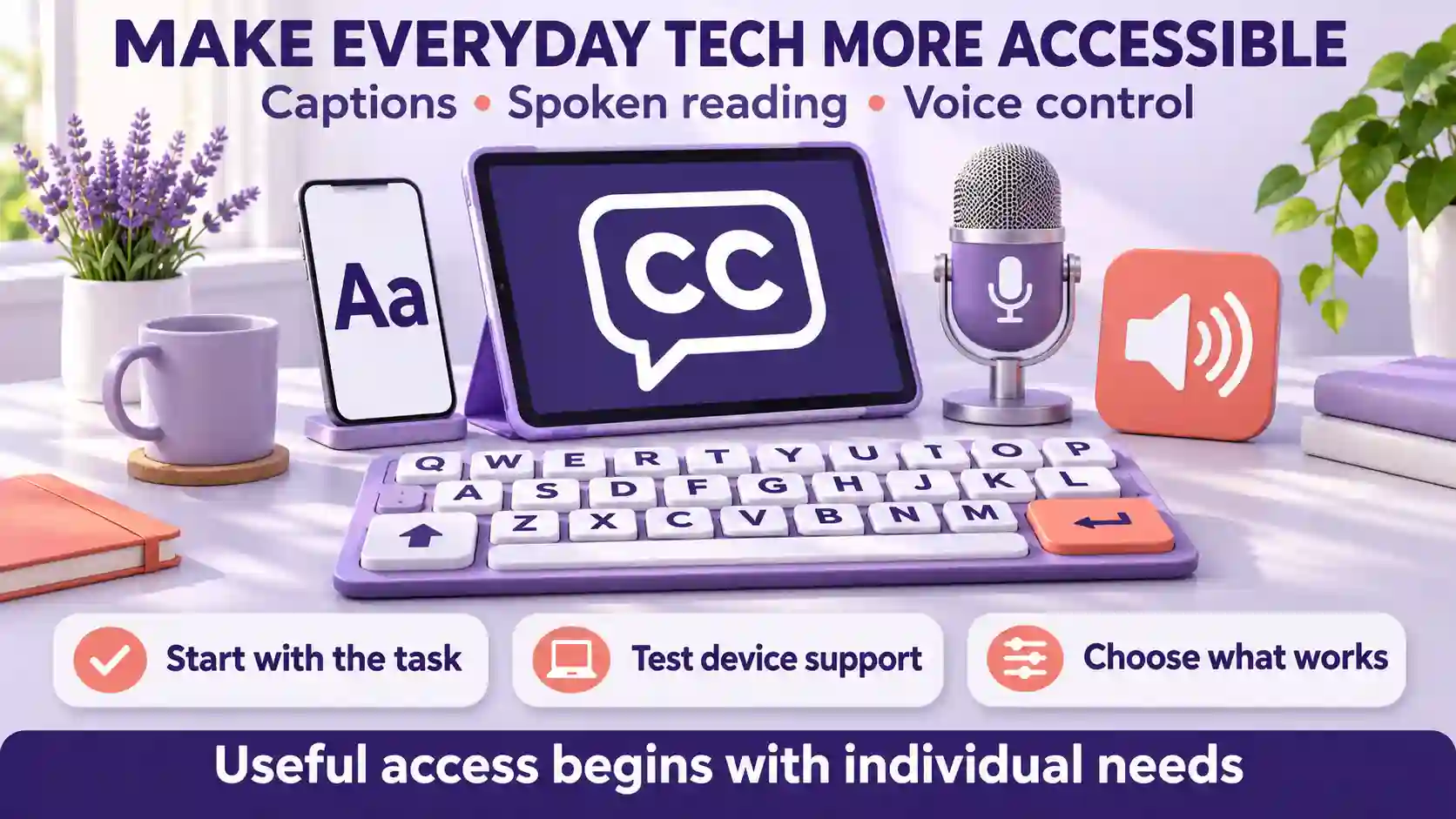
Start with the task that creates difficulty: reading a message, following a call, or navigating an app. Test the relevant setting with the person who will use it. Device, language, app support, and the quality of the content all affect the result.
Automatic captions and descriptions can make mistakes. Check important information and keep another communication method available when needed. Before purchasing specialist hardware, explore the built-in options and consider whether setup help would make them easier to use.
17. Mesh Wi-Fi for Rooms With Weak Coverage
If a video call works beside the router but breaks up in a back bedroom, coverage may be the problem. A mesh Wi-Fi system uses multiple units to extend the network through a home. It can be useful in a larger or awkwardly shaped space, although a better router position may solve a smaller problem.
Check your connection near the main router before buying. A mesh kit cannot remove a bottleneck in the internet service itself. Think about where additional units can go and whether wired connections between them are practical.
Compare Ethernet ports, compatibility with your provider’s equipment, update support, and any paid management features. Follow the placement instructions rather than putting a satellite deep inside the very dead zone you want to fix. TP-Link’s router-versus-mesh guide explains the basic distinction.
18. Cloud Backup and External Drives for Important Files
Photos, schoolwork, and personal documents are easy to overlook until a phone fails or a laptop disappears. Automatic backup services and external drives can reduce the work of keeping another recoverable copy. Choose a setup you will maintain, not one that depends on remembering a complicated weekly routine.
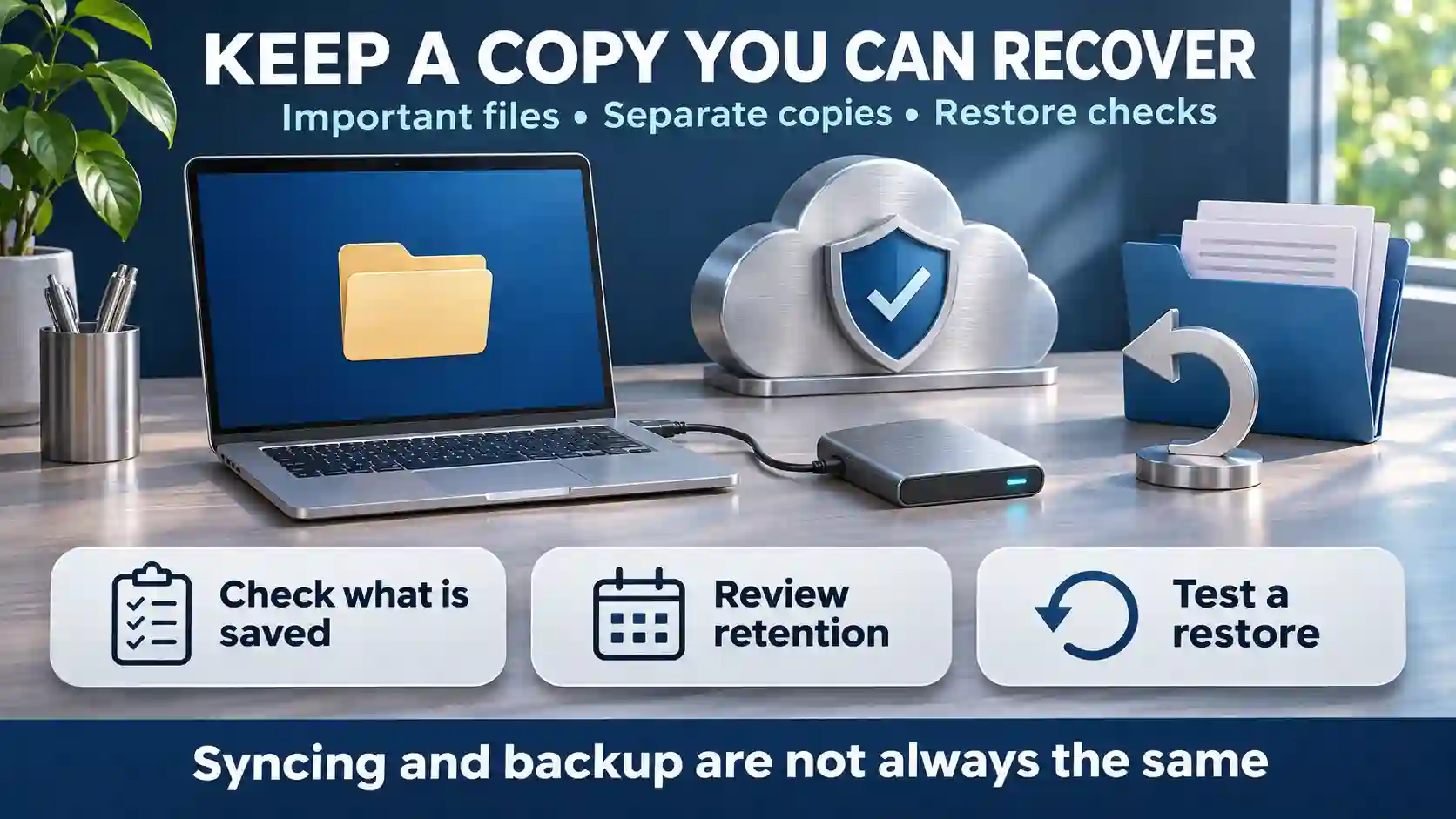
Understand the difference between synchronization and backup. A change or deletion may propagate through a synced folder, while recovery depends on the service’s version history, retention rules, and configuration. Check what is actually included rather than assuming every file on a device is protected.
Restore a small sample before you need it urgently. For irreplaceable files, consider an additional copy separate from the everyday working location, with suitable access protection. Apple’s iCloud backup explanation provides a concrete example of how synced content and device backups can differ.
19. USB-C Chargers and Power Banks for Days Away From an Outlet
A compact charger or power bank can be more useful than another gadget if your phone often runs low during a commute. Some can also charge supported laptops. Start with the devices you carry and the time you spend away from an outlet.
Match the charger, cable, and device requirements. A USB-C connector alone does not establish the charging power available, and output may be shared when several ports are in use. Check the specifications for your intended combination rather than buying only by the largest number on the box.
Balance capacity against weight and recharge time. If you fly, check your airline’s current battery rules before packing. Buy from a dependable source, follow the manufacturer’s handling instructions, and check whether the product has an active recall before relying on it.
20. Portable Power Stations for Larger Backup Needs
A portable power station is a different purchase from a pocket power bank. It may be useful for running selected devices during a short interruption or where an outlet is unavailable. Begin with a list of the equipment you want to use and how long you need it.
Compare continuous output in watts with stored energy in watt-hours; they answer different questions. Also check startup demands, usable outlets, recharge methods, and the manufacturer’s operating conditions. Runtime depends on the load and conversion losses, so treat a simple capacity calculation as an estimate.
Consider weight, storage space, noise, and whether you will keep the unit charged. Follow the manufacturer’s instructions and use qualified help for any connection to household wiring. A portable unit should not be assumed to power a whole home or critical equipment without a specific, properly assessed plan.
21. Document Scanning and OCR for Searchable Paperwork
A phone can turn a receipt, form, or whiteboard into a file you can find again. Scanning tools crop and organize the image, while optical character recognition, or OCR, can make supported text searchable or reusable. For occasional paperwork, this may remove the need for a separate scanner.
Use even lighting and check that every page is complete and readable. Review extracted names, dates, and numbers before copying them into another document. Handwriting, unusual layouts, and poor images can produce errors even when the result looks tidy.
Name files consistently and choose a storage location you can search later. Check where sensitive scans are uploaded and who can access shared folders. Microsoft’s OneDrive OCR guide offers one example of working with scanned PDFs.
22. Noise-Canceling Headphones for Focus and Travel
On a busy commute or in a shared room, noise-canceling headphones can make listening more comfortable. For home working, however, comfort and microphone performance may matter as much as the sound you hear. Try a real call rather than judging only from a music demonstration.
Check fit over a longer session, physical controls, battery life, and switching between your usual devices. Noise cancellation does not remove every sound, and reducing what you hear is different from improving what the person on a call hears.
Choose settings appropriate to your surroundings and keep important sounds audible when necessary. Sony’s noise-cancellation explanation describes the distinction between listening-side noise reduction and call audio. Replacement ear pads and a workable wired option may also matter over time.
23. Offline Maps and Navigation for Unfamiliar Routes
Downloading a map before a trip can help when mobile service is weak or roaming is expensive. Save the area you need while you have a reliable connection, then check that your route falls within it. Keep essential addresses available separately, too.

Offline features vary by app, location, and travel mode. Do not assume live traffic, transit updates, business hours, or every routing option will remain available without a connection. Update the download before traveling and confirm any time-sensitive details directly.
Try a short familiar route first so you understand what the app shows offline. Google’s offline maps instructions explain availability and download requirements. Route guidance still needs to be checked against signs, closures, and the conditions around you.
24. Video-Calling Tools for Clearer Remote Conversations
A dependable video call can save a trip for a family catch-up, tutoring session, or work meeting. The useful upgrade may be a better-positioned webcam or a headset rather than a new computer. Start by finding out whether the problem is picture quality, audio, connection quality, or the meeting setup.
Test your microphone, lighting, camera angle, and connection with someone else. Check guest access, meeting-length limits, captions, and compatibility before inviting a group. A service that works smoothly for the organizer may still be difficult for someone joining on an older phone.
Send clear joining instructions and have a backup contact method. Ask before recording and explain who will receive any recording or transcript. Keep private material out of the camera view and use screen sharing deliberately rather than exposing an entire desktop by default.
25. USB-C Hubs and Docking Stations for a Simpler Desk
A hub or dock can bring a monitor, keyboard, storage device, and network cable together, making it easier to move a laptop between a desk and a bag. The benefit is fewer repeated connections, provided the hardware supports your exact setup.
Check the laptop’s port capabilities, supported operating systems, monitor resolution and refresh rate, and power requirements. Ports with the same shape can serve different functions. Confirm whether a power supply is included and how much charging power remains available to the laptop.
Test the devices together during the return period, including waking from sleep and reconnecting a display. Microsoft’s USB-C Travel Hub documentation, for example, specifies a USB-C port that does not provide video output or laptop charging. Read the specifications rather than inferring capabilities from the connector.
Check Must See Tech Costs, Support Life, and Exit Options
For must see tech, a low entry price can conceal recurring expenses. Add the device or service price to accessories, installation, subscriptions, replacement parts, and the time needed for setup and maintenance. Compare paid features with what is included by default, and check what stops working if you cancel. An inexpensive tool that needs another subscription to perform your main task may be a poor fit.
Ask what happens when a phone, operating system, or linked service changes. Look for a stated update policy, accessible support, and a workable recovery process. Check whether batteries or damaged parts can be replaced and how to erase personal information before selling, returning, or recycling equipment. A useful purchase should have a manageable end of life as well as an appealing first day.
Consider whether another household member can operate essential functions without your phone or account. Test larger text, keyboard or voice controls, and notification settings against actual needs. An accessibility feature is useful only if it works in the tasks you need to complete. Avoid making an essential routine depend on a service that has no acceptable fallback.
For must see tech you use regularly, plan the small maintenance tasks that keep it useful: charging devices, replacing sensor batteries, reviewing account access, and checking that automations still work after updates. Give each shared device a clear owner. Keep recovery instructions somewhere you can reach if your usual phone is lost, and revisit permissions when household members or users change.
Try Must See Tech and Measure the Result
When evaluating must see tech, choose one problem and write down what success would look like before installing anything. For example, an AI assistant should reduce the total time needed to produce a checked draft, while a smart-home routine should work consistently without repeated troubleshooting. Compare against your existing method, including the option of changing a habit or using a tool you already own.
When trying must see tech, use a trial period or return window to test ordinary conditions and likely interruptions. Keep the original process available until you are satisfied. Record setup effort, errors, recurring charges, and whether you actually use the feature. If the tool adds work or demands more data than you are comfortable sharing, stopping is a reasonable outcome.
When testing must see tech, include attention and convenience in your trial. Turn off nonessential notifications, choose which alerts need an immediate response, and check whether another household member can understand the settings. A tool that reduces one chore but creates constant interruptions may not improve daily life. Keep only the reminders and automations that serve a clear purpose.
Choose Must See Tech That Solves a Real Problem
Across these examples, the same principle applies: technology earns a place in daily life when its benefits outweigh its costs, risks, and learning curve. A tool that makes appointments easier to access or saves time on a routine task may be more useful than a flashy new feature.
You don’t need to adopt every trend. Start with a real need, then consider whether a small improvement makes the change worthwhile. Before choosing any must see tech, check its reliability, privacy protections, accessibility, and total cost—including subscriptions and upkeep. If it fits your needs and works consistently, it may be worth keeping.
Frequently Asked Questions
1. What counts as must see tech?
It is technology worth examining because it may solve a real problem. Usefulness depends on your routine, budget, access needs, and willingness to maintain the tool—not simply how recently it launched.
2. Which must see tech should I try first?
Start with your most frequent, manageable problem and test one low-risk option. A small improvement you use regularly is more valuable than several devices or services that add complexity.
3. Do I need to buy new hardware?
Not always. Your existing phone or computer may already support useful services. Check what you own first, then compare any additional purchase with its setup, subscription, and maintenance costs.
4. How do AI assistants differ from AI agents?
Assistants commonly help produce or revise responses, while agents may execute steps across a workflow. Product labels vary, so check actual permissions, approval requirements, and what actions a tool can take.
5. Will smart-home devices work without internet?
It depends on the device and configuration. Check which physical controls, local automations, and schedules remain available, and test them before depending on the system for an important daily routine.
6. Can a fitness tracker replace medical advice?
Do not use a general wellness tracker as a substitute for clinical assessment. Check each feature’s intended use and limitations, and discuss concerning symptoms or treatment decisions with a qualified clinician.
7. How can I avoid subscription surprises?
Check the full price, renewal date, paid feature limits, and cancellation steps before enrolling. Keep confirmations and review whether you still use the benefits when the next billing period approaches.
8. What should I check before sharing personal data?
Review what information is collected, who can access it, how long it is retained, and whether deletion or export is available. Share only what the task requires and review permissions regularly.
Conclusion
Must see tech is most useful when it improves a task you already need to complete. The 25 examples span AI, home routines, mobility, accessibility, account security, and everyday work. Their benefits depend on the specific product and the conditions in which you use it. Start with a clear need, compare current features and terms, and include setup effort, subscriptions, privacy, accessibility, and support in your decision. A simpler option can be the stronger choice when it works reliably and is easier to manage.
Adopt one change at a time and keep a practical fallback while you test it. Check results against your previous routine, including the time spent correcting mistakes or troubleshooting connections. Retain control over account access, important decisions, and the information you share. Review whether the tool continues to earn its place as prices, features, and your needs change. You do not need every innovation; a few dependable choices that fit your life can provide more value than a collection of impressive but seldom-used features.