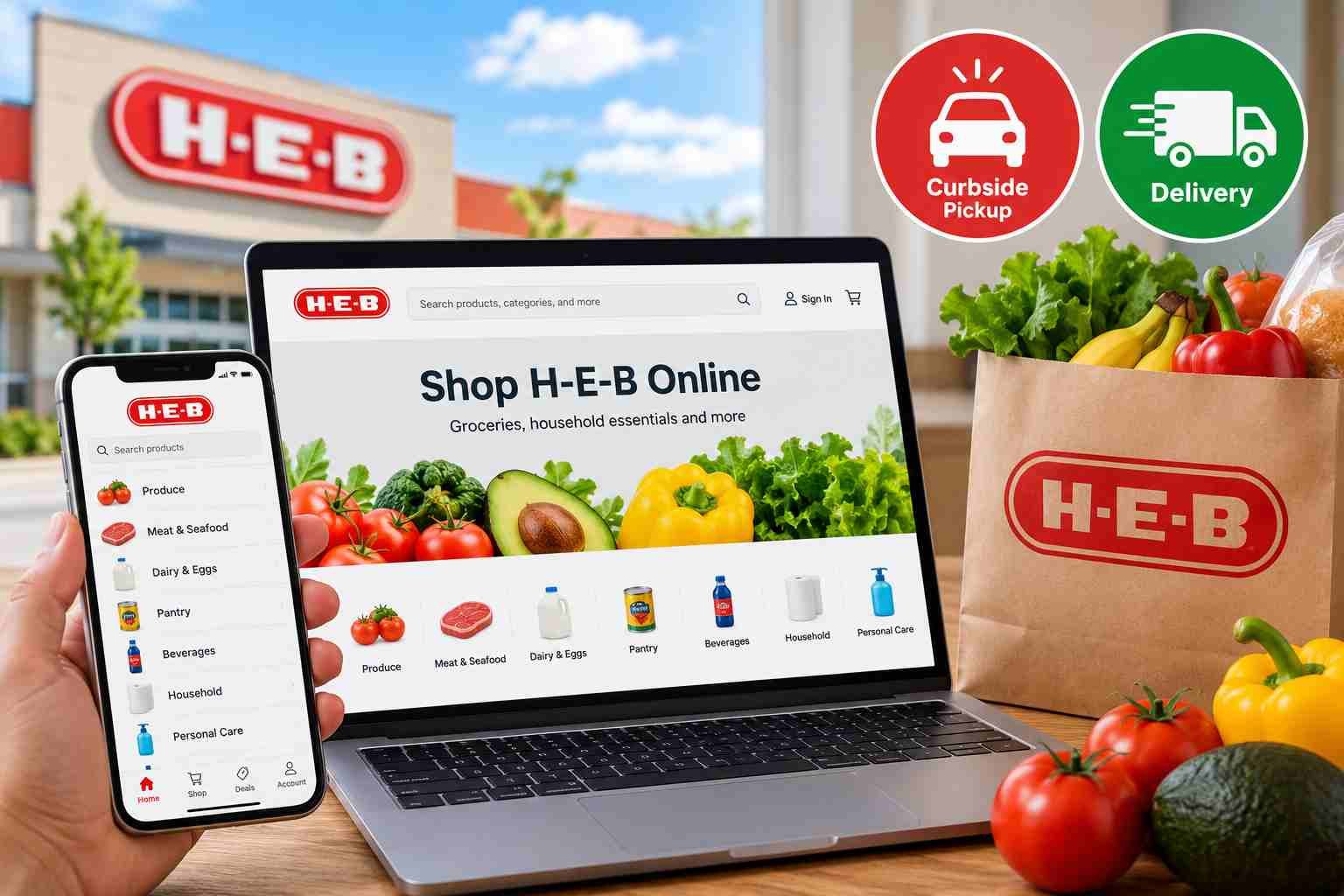
H-E-B online shopping can make it easier to plan a grocery order, but the options available to you depend on your location. This guide walks through how to get started, add items to your cart, compare pickup and delivery, and review costs, timing, substitutions, and order details before checkout.
Not every store or address will have the same fulfillment options or time slots, and fees and ordering terms may change. Check the details shown for your selected location in H-E-B’s current online ordering process before confirming an order.
Where to Start with H-E-B Online Shopping
Your location affects more than how an order is fulfilled. Product selection and available pickup or delivery times can also differ by store or address. If you shop before setting a location, the options you see may not match what you can order where you live. Confirm that the selected location is correct if you change stores or addresses during the process.
Use H-E-B’s official website or app to begin and manage your order. Be cautious with unfamiliar links that claim to offer H-E-B ordering, especially if you are asked to enter account or payment details. Once you have confirmed your location and checked the available services, you can browse products with a clearer picture of what’s actually offered for your order.
Pickup or delivery?
Pickup may suit you if you’d rather collect your groceries yourself and can fit a store visit into your day. You’ll need to plan around the pickup window and allow time to get to the selected store. Delivery may be more convenient if you prefer to have the order brought to your address, but you’ll need to choose from the delivery options and times available for that address.

Neither option is automatically the better fit. Think about your schedule, how you’ll get the groceries, and whether the available time works for you. A pickup window may mean arranging your trip around a set time; with delivery, you’ll need to be available to receive the order as instructed. The choices shown during checkout are specific to your selected location and order, and they may differ from those available elsewhere.
Before adding items, confirm that the store or delivery address is correct and check which fulfillment methods H-E-B currently offers there. Availability can vary, and selecting a method may affect the time slots you can choose. Review the fulfillment option and its details again before confirming, especially if you change your location or address while shopping. Use the current options displayed in H-E-B’s ordering process to decide what fits your plans.
How to Choose a Pickup or Delivery Time
During the ordering process, review the pickup or delivery windows offered for your selected location and fulfillment method. The available choices may change, and not every store or address will show the same times. If a window that works for you isn’t available, check the other options shown rather than assuming a time offered elsewhere will apply to your order.
Choose a window that fits your schedule, including the time you’ll need to get to the store for pickup or be available to receive a delivery. Leave some room in your plans in case there are delays. An estimated delivery time is not guaranteed, so avoid relying on it for a plan that depends on the order arriving at an exact moment.
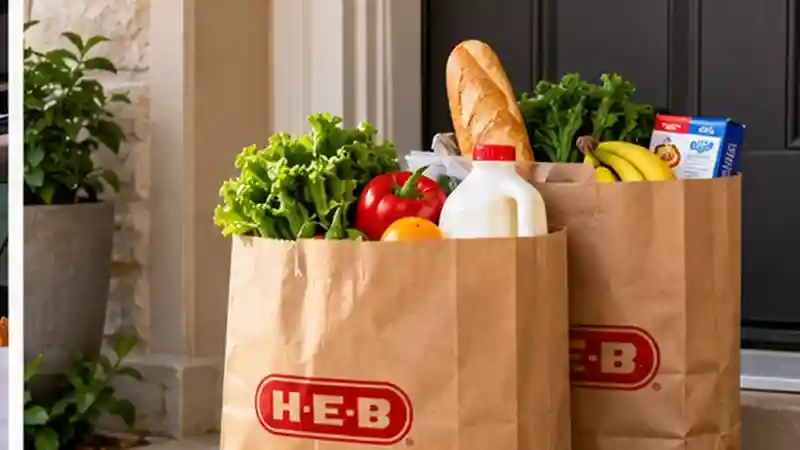
Before confirming, check that the selected store or delivery address is correct, then verify the fulfillment method and chosen time window in the order details. If you change your location or switch between pickup and delivery, review the available times again. The options and timing displayed in the current checkout flow are the best guide for your order.
Make the order work for your household
A little planning can help you catch mistakes and choose groceries that suit your needs. Check the size and quantity of each product, especially when similar items appear in search results. A pack, single item, or larger size may not match what you had in mind, so read the product details before adding it to your cart.
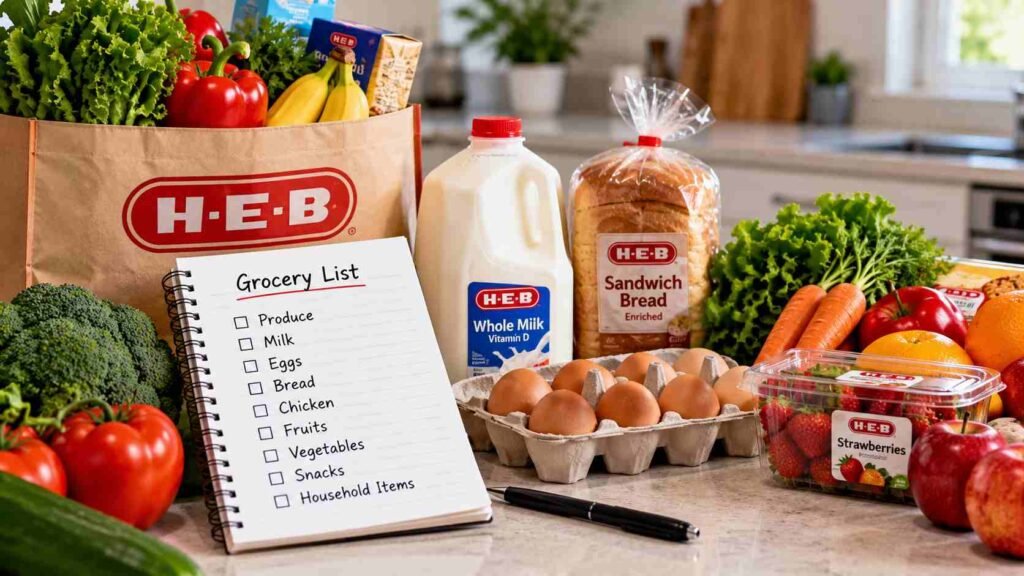
Search carefully if you’re looking for a specific variety or package size. If the results don’t look right, try adjusting your search terms and compare the item details rather than choosing the first close match. Before checkout, review the full cart for unwanted items, duplicates, and quantities that seem too high or too low for your household.
For groceries that are important to a meal or routine, consider in advance what alternatives you would accept if the exact item is unavailable. This can help you make a clearer choice if the ordering process offers substitution preferences or instructions. It does not guarantee that a replacement will be available, so check the final order details for any changes. Taking a few minutes to review your selections can make it easier to spot issues before you confirm.
How to Place an H-E-B Online Shopping Order
Once you’ve set your location, browse the products available there or use search to find specific items. Add the products you want to your cart, checking each item’s size and quantity as you go. The exact screens and steps may change, so follow the current instructions shown on H-E-B’s website or in the My H-E-B app.
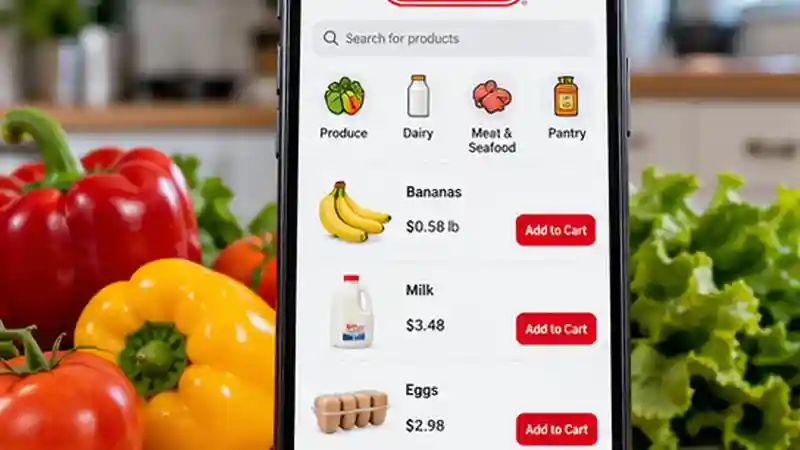
As you browse, check whether any promotions, digital coupons, or discounts are available for your selected store and eligible items. Review the offer details, expiration dates, and any conditions before relying on a discount. Confirm that eligible savings appear in your order total before checkout, as offers and availability may vary.
- Browse or search for groceries, then add your selections to the cart.
- Review the cart. Check product details, quantities, and any items you may have added by mistake.
- Choose an available fulfillment option, such as pickup or delivery, and review the time choices shown for your location.
- Before placing the order, check the checkout summary and follow the instructions to confirm.
Take a moment to make sure the selected store or delivery address is still correct. Available products, fulfillment options, and time slots can depend on that selection. If the checkout flow asks you to review additional details, read them before proceeding rather than assuming they match a previous order.
After you confirm, check the order information shown to you, including the items and fulfillment details. If anything looks different from what you intended, consult the current checkout instructions or H-E-B’s online ordering help resources. The ordering process is a useful guide, but the details displayed for your current order are the ones to verify before you finish.
Read Also: Online Shopping Deals: How to Find Real Savings and Avoid Common Traps
Substitutions, unavailable items, and order notes
Some items in your cart may not be available when the order is prepared. Before checkout, look for any substitution preferences or item-specific instruction options provided for your order. The choices may differ by item or location, so check what the current ordering process actually allows rather than assuming a particular request can be made.
For products that matter to your plans, think about what you would accept if the exact item is unavailable. If the order flow offers a way to record a preference or note, enter it clearly and review it before confirming. An instruction may help explain what you want, but it does not guarantee that an item can be replaced or that a particular alternative will be available.
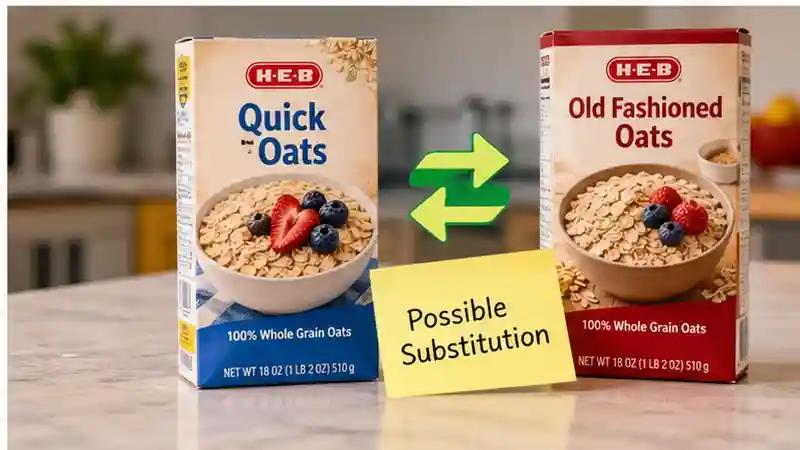
After placing the order, check the order details for any updates to unavailable items or substitutions. Compare the changes with your original selections, especially for groceries where size, type, or quantity matters. If something is unclear or not what you expected, consult H-E-B’s current online ordering help information or contact the appropriate support channel. The options shown for your specific order are the best guide to what you can request and what has changed.
Check the full cost before checkout
Before placing your order, review the full total—not just the prices of the groceries in your cart. Check each item’s displayed price and make sure the products, sizes, and quantities are what you intended to buy. Then look over the order summary for any service or delivery charges, minimums, or other costs shown during checkout.
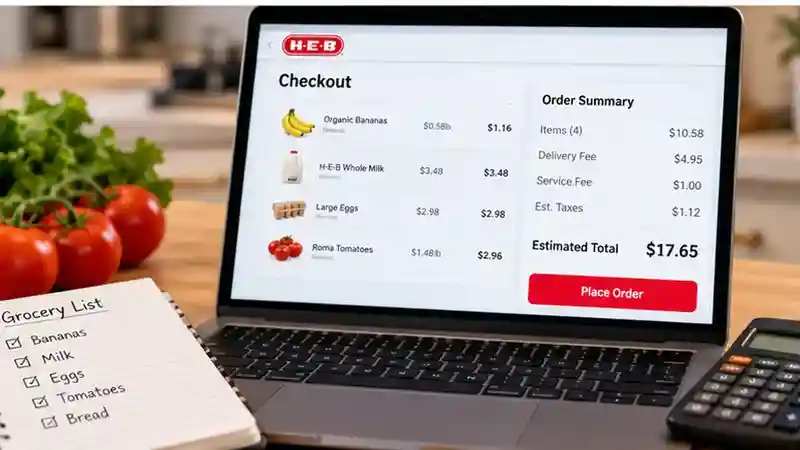
The total and the conditions attached to an order can vary by location, fulfillment method, and the details of that order. Don’t assume the charges or terms will match a previous purchase, or what another shopper sees. If you switch stores, change a delivery address, or select a different fulfillment option, review the updated summary before continuing.
Use the current checkout flow as your guide: read the displayed costs and any related conditions before confirming. If something is unclear or the total differs from what you expected, pause and check H-E-B’s current online ordering information before placing the order. A final review helps you understand what you’re agreeing to pay and catch unexpected charges while you still have a chance to reconsider.
Comparing the full cost of an order is useful across different online retailers. Our Amazon Prime Shopping guide explains how to evaluate delivery benefits, membership costs, and the overall value of an online purchase.
Online Prices, Tips, and the Final Grocery Total
A convenient pickup is not necessarily the lowest-cost basket. H-E-B’s current fee guidance says online prices may differ from advertisements or in-store prices. Service fees can also depend on location, time, and promotions. Delivery checkout suggests a driver tip; review that amount before submitting the order.
For produce or meat sold by weight, the cart amount can be an estimate. The actual weight and any accepted substitutions can change what you pay. Compare unit prices and package sizes when choosing an alternative, then use the final receipt to check the items and charges. H-E-B’s ordering terms explain variable-weight pricing and billing.
Payments, account details, and order changes
Before checkout, make sure your account information is current and review which payment methods H-E-B accepts for online orders. Check H-E-B’s official online ordering help resources for the latest details, since accepted methods and account procedures may change. Most importantly, verify the payment method selected for this order before you place it. H-E-B states that payment methods cannot be changed after an order is placed.
If you need to update an order or cancel it, consult H-E-B’s current instructions for the applicable deadlines and procedures. Whether a change is possible can depend on the order and its status, so don’t assume you can edit or cancel it at any time. Review the guidance in the official help resources and the details shown in your account, then act promptly if you need assistance. A final check of your account details, payment method, and order information can help prevent avoidable problems after checkout.
Using SNAP EBT for H-E-B Online Shopping
H-E-B accepts SNAP EBT online for eligible groceries on curbside and delivery orders. Its SNAP EBT payment guide explains when another payment method is needed: for noneligible items or service fees, and when backup substitutions are enabled. An entirely eligible cart with backup substitutions disabled can be paid using only SNAP EBT.
Check the eligible-item filter and payment split before confirming. H-E-B also explains that SNAP orders include an additional 10% of the estimated price for weighed items to allow for weight differences, with any excess refunded at pickup or delivery. This applies to weighed items, not automatically to the entire basket. Review the weighed-item explanation if the amount looks unexpected.
Final Checklist Before Placing Your Order
Before you confirm your H-E-B online order, run through a final check:
- Confirm the selected store or delivery address and make sure the fulfillment option is right for you.
- Review the cart, including product sizes, quantities, and any substitution preferences or instructions.
- Check the full total and chosen pickup or delivery time.
- After placing the order, save or check the confirmation and review its details.
Availability, charges, time slots, and order terms can vary. Treat the current information shown for your location in H-E-B’s ordering process as authoritative, and pause if any detail doesn’t match what you expect.
Reviewing product details, delivery options, and return conditions is useful beyond grocery shopping. For another example, see our Best Buy Online Shopping guide, which covers comparing products and checking order terms before buying.
Collecting Your Order or Receiving a Delivery
For curbside pickup, check your order status before leaving and follow the store’s Curbside signs when you arrive. Park in a designated spot and use the arrival instructions on the sign or in your order messages. H-E-B’s notification guidance identifies 99147 as its order-update number and says to reply with your spot number on arrival. If check-in fails, use the contact details provided for your pickup location.
For delivery, double-check your apartment number, access instructions, and contact phone before submitting. Keep your phone nearby: the shopper may contact you about substitutions or unavailable products, as explained in H-E-B’s shopping and delivery guidance. Collect the bags promptly and put refrigerated and frozen groceries away without unnecessary delay.
Checking the Receipt and Reporting a Problem
Unpack against the final order details, not just the list you originally added to the cart. Check quantities, substitutions, package condition, and charges for products sold by weight. A missing product may have been marked unavailable, so compare the receipt before deciding you were charged for something you did not receive.
If an item is damaged, wrong, or missing despite appearing on the receipt, save the order number, item details, and a clear photo where useful. Contact H-E-B through the support route for that order. Keep the packaging until the issue is resolved and follow its instructions; a refund or replacement is not automatic in every situation.
If something goes wrong
If an online order doesn’t go as planned, start by checking your account and any order confirmation. Confirm that the location, fulfillment method, selected time, and items match what you intended. Then follow the steps relevant to the problem:
No suitable time is available: Review the windows currently offered for the selected store or delivery address. If none fit your schedule, check H-E-B’s current ordering information for available options.
Checkout won’t complete: Recheck the information you entered and the order summary, then consult current online ordering help. If you’re unsure whether the order went through, check your account for an updated order status before trying again.
An item is missing or incorrect: Compare the received order with its final details, including any changes to unavailable items or substitutions. Use the support route H-E-B provides for that type of order issue.
If the issue remains unresolved, contact the appropriate H-E-B support channel using the current instructions in its official help resources or ordering experience. Have the relevant order details ready and follow the guidance for your specific issue. Available steps and outcomes can depend on the order, so check current information rather than assuming a particular remedy is available.
Frequently Asked Questions
1. How does H-E-B online shopping work?
H-E-B online shopping lets customers order groceries through H-E-B’s official website or My H-E-B app. Select your location, add groceries to your cart, choose an available pickup or delivery option, and complete checkout.
2. Does H-E-B offer curbside pickup?
Yes, H-E-B offers curbside pickup at participating locations. Select your preferred store and check the available pickup time slots before placing your grocery order.
3. Can I get H-E-B groceries delivered to my home?
H-E-B offers grocery delivery in eligible areas. Enter your delivery address on the official website or app to check availability, delivery windows, and applicable charges.
4. How much does H-E-B online shopping cost?
The total depends on your groceries, selected fulfillment method, and applicable charges. Review product prices, delivery or pickup fees, taxes, and any discounts shown at checkout.
5. Are H-E-B online grocery prices the same as in-store prices?
Not necessarily. Prices and promotions may vary by location and ordering method. Check the current prices displayed for your selected store or delivery address before purchasing.
6. What happens if an H-E-B grocery item is unavailable?
H-E-B may offer a substitute when permitted by the order settings and item availability. Review your substitution preferences and check the final order details for changes.
7. Can I change or cancel an H-E-B online order?
Order changes and cancellations depend on H-E-B’s current policies and your order status. Check your account or official ordering help resources for available options and deadlines.
8. How can I save money on H-E-B online shopping?
Check available digital coupons, eligible promotions, and product prices before checkout. Confirm that discounts apply to your order and compare the complete cost of pickup and delivery.
Conclusion
H-E-B online shopping can take some of the work out of a grocery run when you plan around the service available at your address. Start by choosing your location and comparing pickup with delivery, then build a cart that fits your household. Review sizes, quantities, substitutions, and payment details before confirming. Online prices and service charges can differ from in-store shopping, so judge the whole order rather than assuming a convenient option will always cost less.
Keep your order confirmation and phone handy after checkout. Follow the arrival instructions for curbside pickup, or make your delivery address and access details easy to understand. When the groceries arrive, compare them with the final receipt and report problems through H-E-B’s official support channels. If you use SNAP EBT, check eligible items and any charges that need another payment method. A few careful checks can help you avoid confusion while keeping the order practical for your schedule and budget.