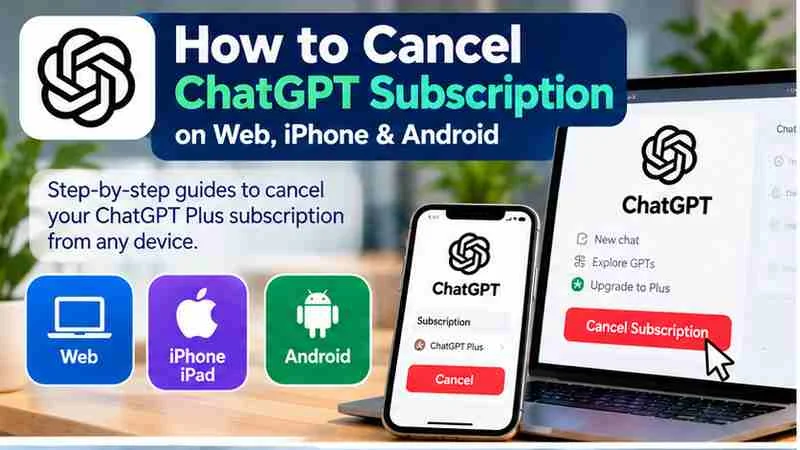
How to cancel ChatGPT subscription depends on where you purchased the plan. If you subscribed on the web, through Apple, or through Google Play, use that billing provider’s cancellation controls and confirm the updated renewal status.
Menus and billing terms can change. If the steps look different, follow the current instructions shown in your account or in the relevant app store, and make sure you’re signed in to the account that handles the subscription.
Before you cancel
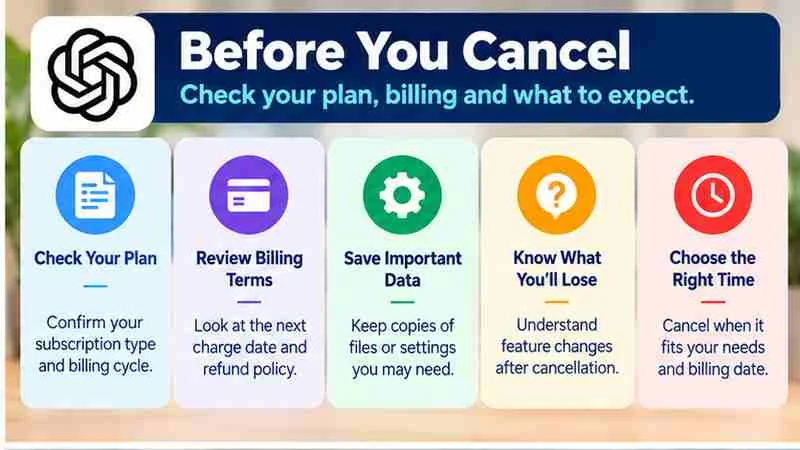
First, confirm which ChatGPT account has the paid plan and which provider bills it. Sign in to the account you use for the subscription, then review its plan or billing details. If the plan is not listed, check whether you subscribed through Apple or Google Play instead, and make sure you’re using the Apple or Google account associated with the purchase.
If you are still comparing paid features and renewal terms, read our ChatGPT Plus subscription guide before deciding what to keep or cancel.
Before proceeding, note the next renewal date and review the cancellation terms shown by the billing provider. Those details can help you understand when cancellation takes effect and whether another renewal is approaching. Menus and terms may change, so rely on the current information in your account or app-store settings.
Deleting the ChatGPT app—or deleting your ChatGPT account—should not be treated as a way to cancel a paid subscription. Cancel through the platform that manages billing, and check its status afterward.
How to Cancel ChatGPT Subscription on the Web
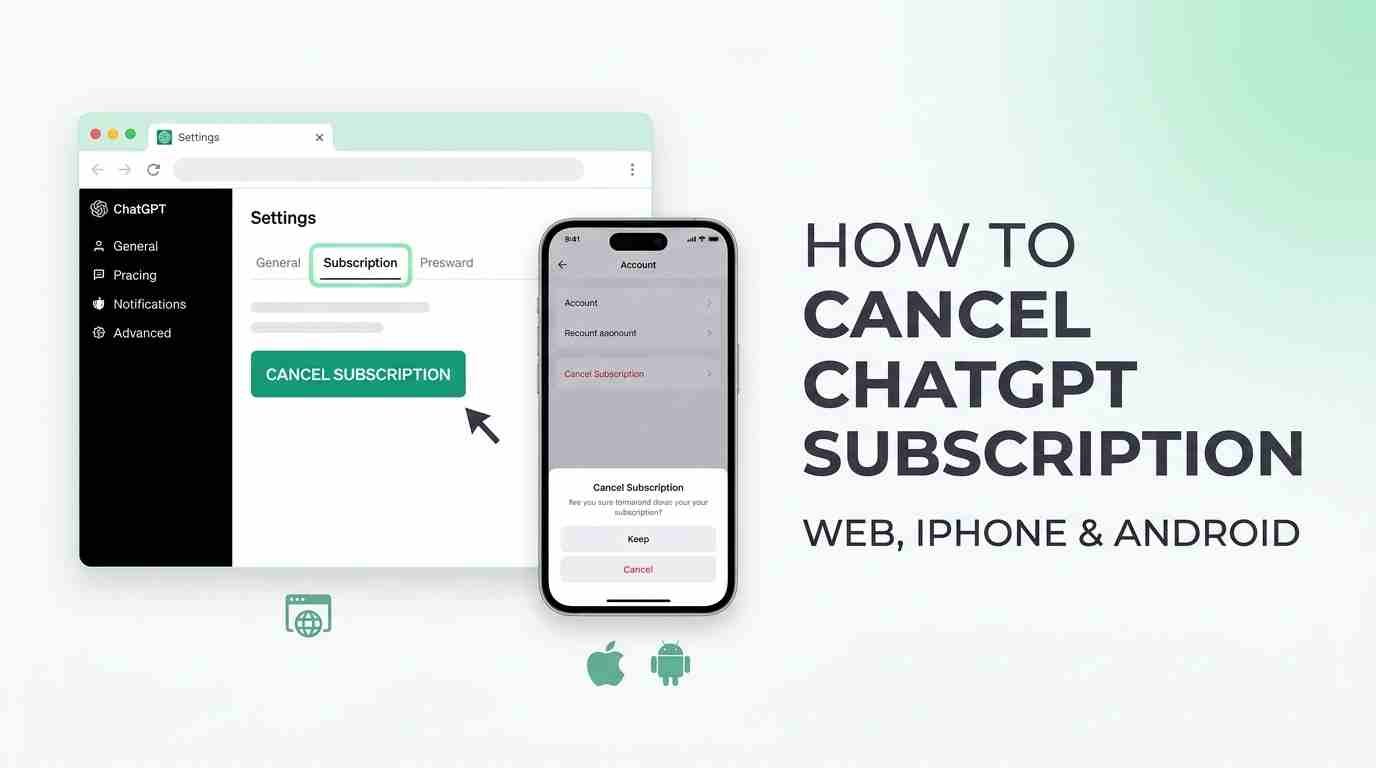
If ChatGPT manages your billing, cancel the plan from the ChatGPT account associated with the subscription. The exact menu names and layout can change, so use the options currently shown in your account rather than relying on a specific label.

For the latest account-specific steps, consult OpenAI’s official ChatGPT cancellation guide and follow the billing options available in your account.
- Sign in to ChatGPT with the account that has the paid plan. If you have more than one account, check that you’re using the one linked to the subscription.
- Open your account or profile controls, then look for the section related to your plan, subscription, or billing.
- Review the subscription details to confirm this is the plan you want to cancel. Choose the option to manage or cancel it if one is available.
- Follow the on-screen prompts through completion. Read any details about the cancellation’s timing, then confirm the cancellation when asked.
- Look for a clear status change or confirmation message. If the page does not confirm that cancellation is complete, return to the subscription controls or consult the current help or billing instructions shown in your account.
Do not assume that closing the page or removing the app cancels the subscription. Keep any confirmation for your records, and check the account’s renewal information afterward to see whether another renewal is scheduled.
Cancel through Apple on iPhone or iPad
If you purchased your ChatGPT subscription through Apple, manage its cancellation in your Apple account’s subscription settings. It may not be available to cancel through ChatGPT, even if you use the ChatGPT app.
Apple provides its own official subscription cancellation instructions for iPhone and iPad users. Use the Apple account associated with the original purchase.
- On your iPhone or iPad, open Settings and go to your Apple account.
- Open the subscriptions area and look for the ChatGPT subscription.
- Select it, review the details, and follow the prompts to cancel.
- Check the on-screen status or confirmation to make sure the cancellation was completed.
Make sure you’re signed in to the Apple account used for the purchase. If you can’t find the subscription, check whether it was bought using a different Apple account before trying another cancellation route. Apple’s menu labels and navigation can change, so consult its current instructions if these steps don’t match what you see. Keep any confirmation, and check the subscription’s renewal or end-date information in Apple’s settings.
Cancel through Google Play on Android
If you purchased your ChatGPT subscription through Google Play, manage its cancellation in Google Play’s subscription settings. Cancelling through ChatGPT may not be available for a subscription billed by Google Play.
For Android purchases, follow Google Play’s official subscription management guide to review and cancel the subscription under the correct Google account.
- Open the Google Play Store and check which Google account is signed in. If you use more than one account, switch to the one used for the purchase.
- Open your profile or account menu and go to the subscriptions area. Find and select the ChatGPT subscription.
- Review the subscription details, then choose the cancellation option if available. Follow the current on-screen prompts until Google Play confirms the change.
Check the subscription’s displayed status and renewal information afterward. If ChatGPT does not appear, confirm you’re viewing the correct Google account before assuming the subscription is billed elsewhere. Play Store menus and terms can change, so follow the current instructions shown in the app. Keep any confirmation for your records. If the subscription still isn’t visible or its status is unclear, check the purchase receipt or contact the billing provider for help.
How to confirm the cancellation worked
Check the platform that bills your subscription. A cancellation made through Apple or Google Play may not show as complete in ChatGPT’s billing controls, and vice versa. Status labels and confirmation steps can vary, so rely on the information currently shown by your billing provider.
- Review the subscription status in the relevant place: your ChatGPT plan or billing area, Apple’s subscription settings, or Google Play’s subscriptions. Look for a cancellation status or an end date.
- Check the account or email associated with the billing platform for a cancellation message or receipt, if one was provided.
- Review the renewal details to see whether another renewal is scheduled and when paid access is due to end. Timing can vary, so read the provider’s current terms.
If the status is unclear or a future renewal still appears, revisit the cancellation controls on the same platform that bills you, or contact that provider before assuming cancellation is complete. Keep any confirmation for your records.
What happens after you cancel
Cancellation stops future renewals only according to the billing provider’s terms. Check the subscription status in the same place that bills you—your ChatGPT account, Apple’s subscription settings, or Google Play—and review the displayed end date and renewal details.

If you plan to continue using AI without a paid ChatGPT plan, our guide to ChatGPT alternatives explains how to compare other tools based on your needs.
Before assuming what changes, confirm:
- When your paid access is scheduled to end.
- Whether the provider’s current terms say you can use paid features through the end of the billing period or access ends earlier.
- Whether cancellation affects only the subscription or also has any effect on your ChatGPT account or chat history.
These details can vary by billing platform and may change. Use the status and terms shown in your account or the relevant app store for the exact timing and effects. If the displayed information is unclear, contact the provider that manages your billing before making assumptions about access, chat history, or your account.
If you can’t find the subscription
If the ChatGPT plan isn’t listed, check whether you’re signed in to the ChatGPT account used for the purchase. Then check other Apple or Google accounts you may have used. A subscription may be managed under a different account than the one you currently have open.
Look for a purchase receipt or billing descriptor on the email account or payment method used for the charge. This may help identify whether ChatGPT, Apple, or Google Play processed it. Once you know the billing platform, check that platform’s subscription settings using the matching account.
Separate sign-in problems from subscription-management problems: if you can’t access an account, use that service’s current sign-in recovery options. If you can access your account but can’t find or change the subscription, contact the platform that processed the charge. For questions about a charge or cancellation status, start with the billing provider—not necessarily ChatGPT.
Refunds, charges, and billing questions
Canceling a subscription and requesting a refund are separate actions. Canceling is meant to stop future renewals under the billing provider’s terms; it does not automatically refund a payment. A refund request is reviewed separately, and submitting one does not guarantee approval.
If you want to ask about a charge or request a refund, use the current support or refund process for the provider that billed you. That may be ChatGPT, Apple, or Google Play. Check the receipt or billing details to identify the provider, then follow its instructions and review any terms shown during the request. If you’re unsure whether a cancellation went through, check the subscription status with the same provider before assuming future billing has stopped.
How to Cancel ChatGPT Subscription: Final Checklist
After checking your billing status, you can still explore practical ways to use the service in our ChatGPT for writing guide.
- Check whether ChatGPT, Apple, or Google Play manages your billing.
- Cancel the subscription through that provider’s current subscription settings.
- Save the cancellation confirmation or message, if provided.
- Check the subscription status, renewal details, and when paid access is scheduled to end.
- If a charge or cancellation status is unclear, contact the provider that handles your billing.
Frequently Asked Questions
1. How do I cancel my ChatGPT subscription on the web?
Sign in to the ChatGPT account associated with your paid subscription. Open Settings, find your subscription or billing management options, and follow the cancellation instructions. Confirm that your subscription status has changed.
2. How do I cancel a ChatGPT subscription on an iPhone?
If you subscribed through Apple, open your iPhone’s Settings, select your Apple account, and go to Subscriptions. Choose ChatGPT, follow the cancellation prompts, and verify the updated status.
3. How do I cancel ChatGPT Plus on Android?
If you purchased ChatGPT Plus through Google Play, open the Play Store, select your account, and go to Subscriptions. Find ChatGPT, choose the cancellation option, and follow the instructions.
4. Can I cancel ChatGPT Plus anytime?
You can generally cancel a ChatGPT Plus subscription before its next renewal. Check your billing provider’s current cancellation terms and deadlines to understand when cancellation takes effect.
5. Will I lose ChatGPT Plus immediately after canceling?
Paid access generally continues until the end of the current billing period, but you should confirm the exact expiration date in your subscription settings and review the applicable provider’s terms.
6. Will I get a refund if I cancel my ChatGPT subscription?
Canceling does not automatically provide a refund. Refund eligibility depends on the billing provider’s policies and your purchase circumstances. Submit a separate refund request if applicable.
7. How can I confirm my ChatGPT subscription is canceled?
Check your subscription status through ChatGPT, Apple, or Google Play, depending on where you subscribed. Look for a cancellation confirmation, expiration date, or updated renewal information.
8. What should I do if I cannot find the ChatGPT cancellation option?
Check whether you are signed in to the correct account and identify your billing provider using your purchase receipt. If the option remains unavailable, contact the appropriate provider’s support team.
Conclusion
Understanding how to cancel a ChatGPT subscription begins with identifying the platform that manages your billing. If you purchased your subscription directly through ChatGPT, you should use the subscription management options in your ChatGPT account. However, subscriptions purchased through Apple’s App Store or Google Play must generally be managed through the corresponding store. Before canceling, confirm that you are signed in to the correct account and review your next renewal date. Follow the current cancellation instructions carefully, since menu names and subscription settings may change. Deleting the ChatGPT app alone does not cancel an active paid subscription.
After completing the cancellation process, verify your subscription status through the platform that originally billed you. Look for a confirmation message, updated renewal information, or the date when paid access is scheduled to end. Remember that canceling a ChatGPT subscription and requesting a refund are separate processes, and refund approval depends on the applicable provider’s policies. If you cannot locate your subscription or confirm its cancellation, review your purchase receipt and contact the appropriate billing provider for assistance. By following the correct cancellation method and checking your account afterward, you can manage your subscription more confidently and reduce the risk of unexpected renewal charges.