

Cloud based productivity and collaboration tools help teams work from different locations while sharing files, conversations, calendars, and project information. But the right choice isn’t the one with the longest feature list. It’s the one that fits how your team works, what information it needs to protect, and the systems it already uses.
A student group coordinating a project, a creator team sharing drafts, and a growing business managing client work may need different tools. This guide offers practical ways to compare options and make a choice that works day to day. For more digital-work resources, visit Digitally USA.
Start With Your Team’s Actual Workflows
Before comparing cloud based productivity and collaboration tools, identify what your team needs to get done. Map a typical project from kickoff through review and delivery. Note where people hand work off, repeat updates in different places, or struggle to find the latest file.
Then connect those friction points to tool categories. Messaging can handle quick questions; video meetings can support discussions that need more context. Shared documents help people work on drafts together, task tracking clarifies ownership and deadlines, and file storage keeps project materials organized. For example, a team that often misses review steps may need clearer task assignments—not another chat channel.
A small team may find an integrated suite easier to manage because messaging, documents, and storage work together. A distributed or specialized team may prefer focused tools for particular tasks, provided they connect reliably. Think of integrations as reusable building blocks: how reusable software components shape modern apps helps explain why modular parts can fit existing workflows.
List the handoffs and features that matter most before reviewing brands or plans. That gives your team a practical way to judge whether a platform reduces friction—and whether its integrations are dependable enough for everyday work.
Match Each Tool Category to a Specific Need
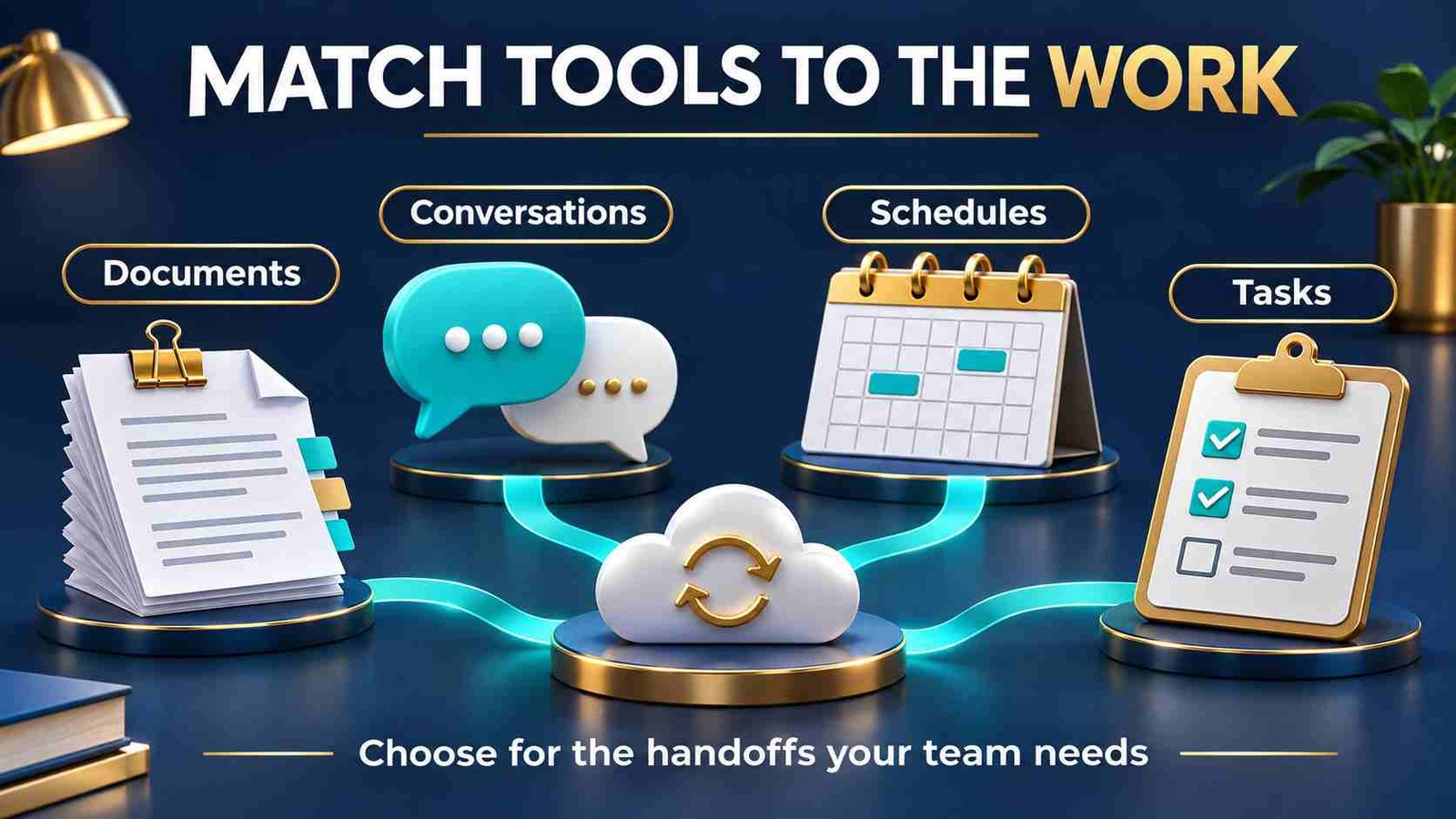
Shortlist cloud based productivity and collaboration tools around the work, then check the exact plan. A platform can cover several categories, but that does not mean each feature is included or equally suitable for your team.
| Team need | Capability to prioritize | Practical trial task |
|---|---|---|
| Shared drafts and approvals | Co-editing, comments, version history, and document permissions | Draft, review, approve, and retrieve an earlier version. |
| Quick discussion across locations | Searchable channels, threads, and notification controls | Find a past decision without asking its author. |
| Tasks and deadlines | Named owners, dependencies, due dates, and status views | Move a task through a handoff and identify who acts next. |
| Client collaboration | Restricted guest access and clear review permissions | Invite a guest, share one project, and remove access afterward. |
| Shared files and knowledge | Team ownership, search, permissions, and usable exports | Locate an approved file and open an exported copy. |
An integrated suite is worth considering when it covers these tasks with fewer accounts and simpler administration. Add a specialist tool only for a specific gap. Two task trackers or several competing file stores can create more uncertainty about where work belongs.
Compare Collaboration Features, Compatibility, and Ease of Use
Once you know which handoffs matter, compare what your shortlisted cloud based productivity and collaboration tools actually let people do. Look beyond broad claims such as “seamless collaboration.” Can teammates co-edit documents, review version history, search conversations, invite guests, record meetings, and assign task owners? A team sharing client drafts, for example, may need clear guest access and a reliable record of changes.
Check how well the platform fits your existing setup. Test integrations with calendars, email, file storage, and project tools, and confirm they work as expected—not just that they appear in a marketplace. Make sure people can use the service in a browser, desktop app, and on mobile if their work requires it. Cloud based productivity and collaboration tools are more useful when they fit the team’s devices and habits.
Before committing, run a short trial with representative team members on a real project. Notice whether people can find files and conversations, understand notifications, and complete routine tasks without workarounds. Ask quieter or less technical users where they get stuck; friction for them can become a barrier to adoption across the team.
Check Security, Privacy, and Administrative Controls
A tool that works well for a personal project may not be suitable for business records or sensitive client information. Before moving business records into cloud based productivity and collaboration tools, check whether the provider offers multifactor authentication and clear permission settings. These controls help limit access and reduce the risk of an account being misused.
Review how the provider explains encryption, data retention, and backups. Ask how your team can recover deleted files or restore access after an outage. For business use, also check account offboarding: administrators should be able to remove a departing worker’s access without losing work the team still needs.
Read the privacy terms to understand how data is used and who may access it. Check whether you can export files and records in usable formats, and what support is available if something goes wrong. Teams handling regulated or confidential information should confirm that the provider meets the compliance requirements relevant to their work; a feature label alone is not proof.
If a platform includes AI features, find out what information may be processed, stored, or used to improve services. Set rules for sensitive material before staff use those features, and review the capabilities and limits of advanced AI assistants. These checks help you compare cloud based productivity and collaboration tools on safeguards, not just convenience.
Check connected-app permissions separately: Review the files, mailboxes, calendars, and workspaces each integration or AI feature requests access to. Enable only the access needed for the task, identify who can approve new connections, and test how to revoke them. Review generated meeting notes against the actual decisions, and require approval before an automation sends client messages, shares files, or changes important records.
Plan File Ownership and External Sharing
When assessing cloud based productivity and collaboration tools, confirm whether important work belongs to a person’s account or a team-managed space. For example, Google’s shared-drive guidance explains that shared-drive files belong to the team rather than an individual. Check availability and permissions for your edition; do not assume every shared folder has the same ownership model.
Assign an owner for each shared workspace and a backup administrator. Give guests access only to the project material they need, check inherited folder permissions, and review public-link settings. Test access with a guest account rather than judging it from an administrator’s view.
Include files, calendars, integrations, and shared resources in offboarding. Before removing an account, confirm that the team can still access its required records and that connected automations have an appropriate owner. Review whether departing staff or expired contractors retain access through other accounts or sharing links.

Test Offline Work and Recovery Before an Outage
“Cloud based” does not tell you which tasks work without a connection. Check offline setup on the devices your team uses, including which files must be prepared in advance. Google’s offline-file instructions, for example, distinguish browser document access from desktop streaming and mirroring. Test your selected workflow while disconnected, then verify what happens after reconnection.
Plan how the team will communicate and record urgent changes when its cloud based productivity and collaboration tools are unavailable. Avoid editing several separate copies without a plan to reconcile them. Assign someone to confirm that offline work has synchronized before colleagues continue editing.
Do not treat synchronization, version history, retention, and backup as interchangeable. Microsoft’s backup FAQ explains why disaster recovery copies and versions serve different purposes from broader restore tooling. Check the actual recovery window, covered data, permissions, and restore process for your plan.
Test recovery in your shortlisted cloud based productivity and collaboration tools using nonessential sample material: restore an edited or deleted file, open it, and confirm its permissions. Record who can request recovery and what to do if the normal administrator is unavailable. Decide whether additional backup is needed from the test results and the importance of the data.

Evaluate Total Cost, AI Add-Ons, and Long-Term Flexibility
A low per-user price for cloud based productivity and collaboration tools may not reflect what your team will actually pay. Compare the full cost per user, including storage limits, premium administration, guest seats, support, and AI features. Check which capabilities are included and which require paid add-ons. For example, a plan that charges extra for outside collaborators may cost more once clients or contractors join.
Consider how costs and limits change as the team grows. Check cancellation terms and whether you can export files, conversations, and other records in usable formats. A straightforward exit process makes it easier to switch if your needs or budget change.
For AI workloads, hosted tools offer convenience, while self-hosting can provide more control but requires technical resources and ongoing maintenance. Read about the trade-offs of self-hosted AI before treating either approach as the default. Compare providers on practical fit, not just subscription price, when evaluating cloud based productivity and collaboration tools.
Run a Pilot With Clear Success Criteria
Trial cloud based productivity and collaboration tools on one representative project with the people who create work, review it, administer access, and collaborate externally. Also test keyboard navigation, screen-reader support where relevant, captions, mobile access, and document readability with the colleagues who depend on them.
Record a baseline before the trial: how long it takes to locate an approved document, complete a handoff, and resolve an access request. Set acceptable targets for your team rather than adopting an arbitrary industry score. Record failures and required workarounds alongside successful tasks.
Test an integration end to end, including an expired connection or duplicate update where practical. Confirm who receives a failure alert and how work continues manually. An integration listing is not evidence that the complete workflow works under your account’s permissions.
Use the pilot results to decide whether the proposed cloud based productivity and collaboration tools fit your team, need configuration changes, or should be rejected. Consider time spent administering it as well as subscription charges. A tool that shifts the same work into manual fixes has not solved the original problem.
Set Team Rules for Asynchronous Collaboration
Agree on where each type of information belongs across your cloud based productivity and collaboration tools. Keep approved documents in one agreed location, task ownership in the task system, and final decisions in a record that people can find later. Link to the current file instead of distributing fresh attachments with every update.
Agree on response expectations across time zones. Separate urgent requests from routine questions, use threads to keep discussions together, and reserve broad notifications for issues that need the whole team. An unread chat message should not be the only record of a deadline.
For meetings, record the decision, next action, owner, and due date in the agreed workspace. Give absent colleagues enough written context to continue without another meeting. These habits make collaboration more dependable even before you add new software.
Migrate in Stages and Keep an Exit Route
Before switching cloud based productivity and collaboration tools, inventory active projects, owners, guest access, and integrations. Remove obsolete duplicates according to your team’s retention requirements, then migrate a small sample. Check document formatting, comments, versions, links, permissions, and timestamps; different services may transfer different parts of that information.
Set a clear switch date and tell the team where new work belongs. Keep the former workspace available as an agreed reference during the transition, subject to your access and retention requirements. Maintain a rollback plan if essential files or permissions do not transfer correctly.
Before committing to cloud based productivity and collaboration tools for the long term, export representative documents, tasks, and conversations where supported. Open the files outside the original service and check whether attachments and context remain usable. Record export restrictions and any administrative access needed; an export button alone does not establish that a future move will be straightforward.
After rolling out cloud based productivity and collaboration tools, review unused seats, duplicate apps, guest access, recurring support issues, and whether the original handoff problems improved. Give someone responsibility for onboarding and short workflow instructions so adoption does not depend on a single enthusiastic team member.

Frequently Asked Questions
1. What are cloud based productivity and collaboration tools?
They are online services that help teams share documents, communicate, coordinate schedules, and track work. Capabilities vary, so assess the specific tasks and account controls your team needs.
2. Should a small team choose one suite or several specialist tools?
Start with the simplest setup that meets essential needs. Add specialist software for a confirmed gap, then test its integrations and administration requirements before committing to another subscription.
3. How can a team compare tools fairly?
Use the same representative project, participants, and delivery requirements. Measure routine tasks against your current workflow, recording delays, access problems, correction work, and successful outcomes throughout the pilot.
4. Do cloud tools work without an internet connection?
Some support selected offline tasks, but setup and supported files differ. Prepare access in advance, test it on the devices you use, and verify changes after reconnecting to the service.
5. Is file synchronization the same as backup?
No. Synchronization keeps copies aligned, while recovery depends on the service’s specific versioning, retention, and backup arrangements. Test restoration and confirm the available recovery window before relying on it.
6. What should we check before inviting clients or contractors?
Confirm which projects, files, and conversations guests can access. Test permissions from a guest account, check any seat charges, and assign responsibility for removing access when the work ends.
7. How should we assess built-in AI features?
Check what information the feature can access, where it is processed, and which controls apply to your plan. Require review of generated summaries and approval before consequential automated actions.
8. What should we export before changing platforms?
Test exports of representative documents, tasks, conversations, and attachments where supported. Check formatting, ownership, permissions, and context outside the original platform, then plan around anything that does not transfer.
Conclusion
Choosing cloud based productivity and collaboration tools starts with the work your team needs to complete. Map the handoffs, decide where approved information belongs, and compare platforms against those requirements. Test document sharing, guest access, integrations, and everyday usability with the people who will depend on them. Include administration, training, storage, and add-ons in the cost assessment. A useful tool should make responsibilities clearer and information easier to find, rather than adding another place for the team to check.
Before moving important work, verify ownership, permissions, offline access, recovery, and usable exports. For AI features, review data access and require human checks where errors could affect clients or business records; the same care applies when assessing an AI browser extension. Roll out the chosen setup in stages, give someone responsibility for support, and review results after adoption. Keep the arrangement that improves real work, adjust what creates friction, and retain a practical route to change platforms if your needs evolve.